 Translate








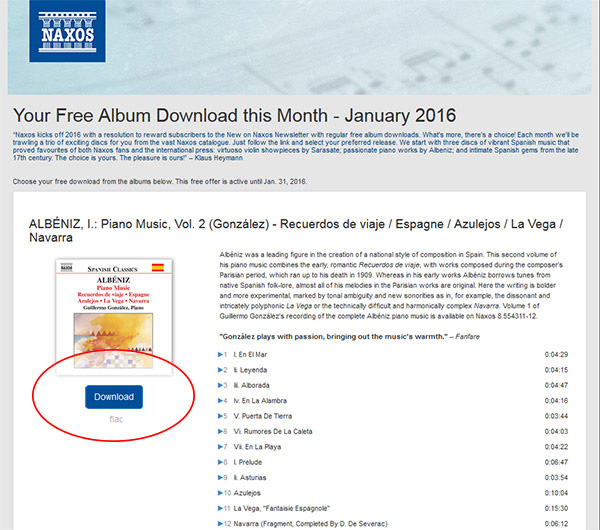
On the Free Album Offer page, click the blue ‘Download’ button of the album you wish to redeem.
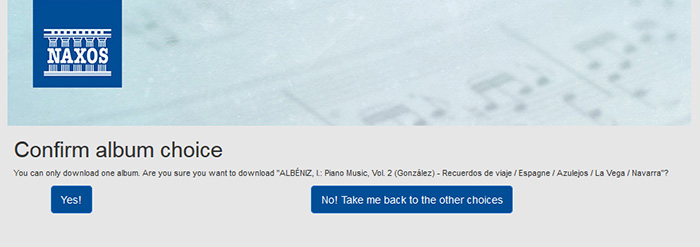
Confirm your album choice* by clicking ‘Yes!’ or click ‘No! Take me back to the other choices’
to go back to the previous page of album selections.
*We reserve the right to change our offerings from time to time, on the range of album selections or with one specific featured album.
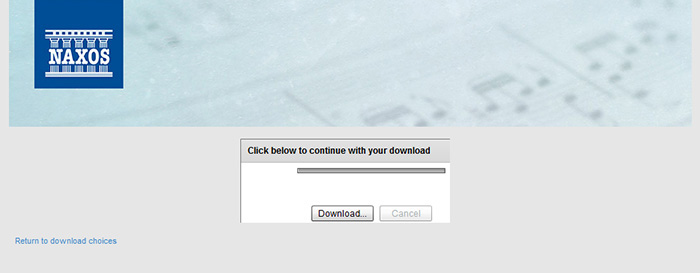
Clicking ‘Yes’ confirms your album of choice. A pop-up box will appear as illustrated below.
Click the ‘Download’ button and follow the next step. The download process is not initiated at this point yet.
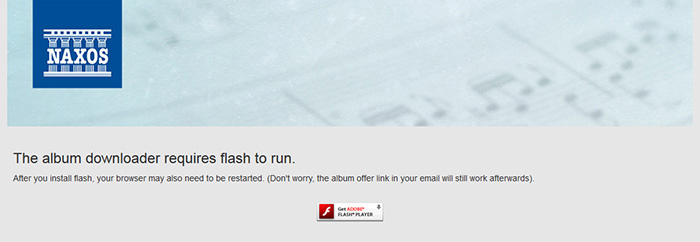
IMPORTANT NOTE: Our system requires that your browser supports Flash, so in some cases, you may not immediately see the screen illustrated above. Make sure a Flash player is installed in your browser. Please follow the installation prompts, close your browser and relaunch. Return back to the offer link and go back to Step 1.
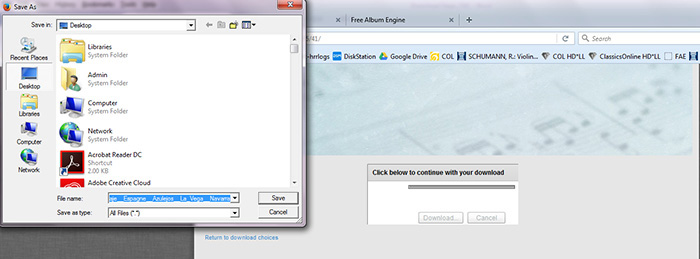
After clicking the ‘Download’ button, you will need to specify the location where you’d like to SAVE your download. A pop-up window will appear, where you can select a specific directory and folder from your computer. Make sure you remember the location! Click ‘SAVE’ to begin downloading.
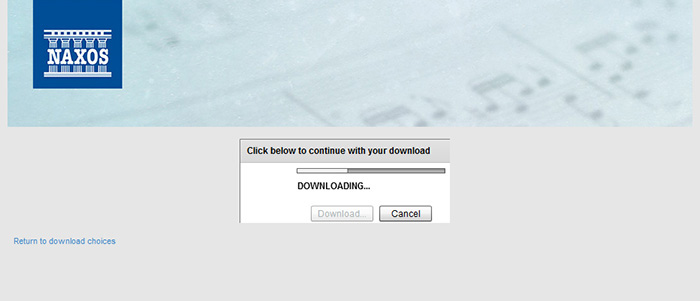
Sit back and wait for your download to complete. The progress bar illustrates your download progress until your download is complete.
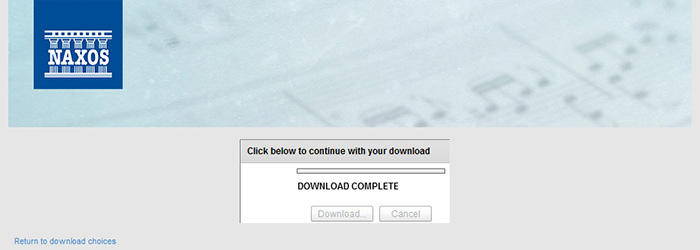
DOWNLOAD COMPLETE!
Finally, you will be directed to a ‘SUCCESS’ page, which confirms your successful album download.
Check the location where you saved your album download. It’s in a zip file so there’s a need to extract the files in order to access the audio files*.
* From 13 September 2023, complimentary downloads will no longer include other assets such as booklets and album covers.
In the rare case that your download gets interrupted and/or fails, you should be able to access the offer again, but you may need to start all over from Step 1 by re-accessing the offer link.
- Only one album can be downloaded per offer. Trying the link for another download will return an error. Naxos reserves the right to demand payment for unauthorized and/or illegal multiple downloads, if the act is done explicitly, with intention to deceive the system.
- Free downloads are currently offered in FLAC format to give you a much better listening experience. Other download formats may be offered at a later time.
- Offers are valid for a limited period of time. The offer period in each of our offers will vary so make sure you claim your download before the specified end date. Otherwise, an expired offer will automatically become unavailable and cannot be reinstated or extended.
- Offers are exclusive to its intended recipients and cannot be forwarded or shared.
- Downloading from mobile devices and Linux OS are currently not supported.
Should you need assistance or require more help, please contact our customer service team at customer.service@naxos.com